There are two ways in. With both, the save finishes the moment you tap.
Open a page in Safari or elsewhere, tap the share button, and choose Kakesu. If it is not in the list, turn Kakesu on from “More” in the share sheet.
By the time you have chosen it, the save is done. The screen that follows lets you add tags and a note on the spot, but you can close it without adding anything and fill them in later from the edit screen. If you tapped by mistake, “Undo” at the top left removes just the item you have created.
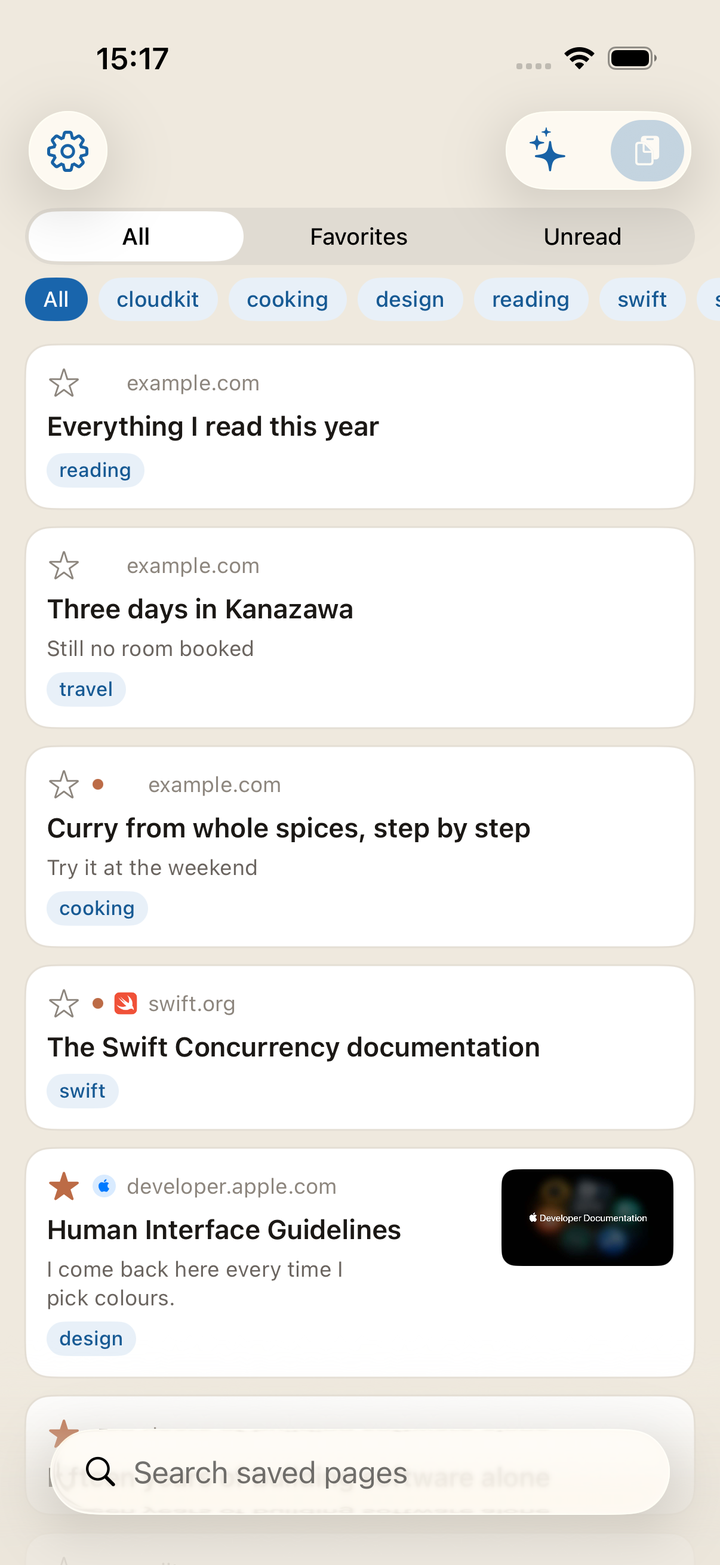
With a URL on the clipboard, open the app and tap the paste button at the top right.
Titles and thumbnails fill themselves in afterwards. Right after saving you will see only URLs, but the app fetches them one by one while it is open. Saving somewhere with bad reception does not make the save itself fail.
Saving the same page twice does not add a second copy
(tracking parameters such as ?utm_source= and a difference of www. are ignored).
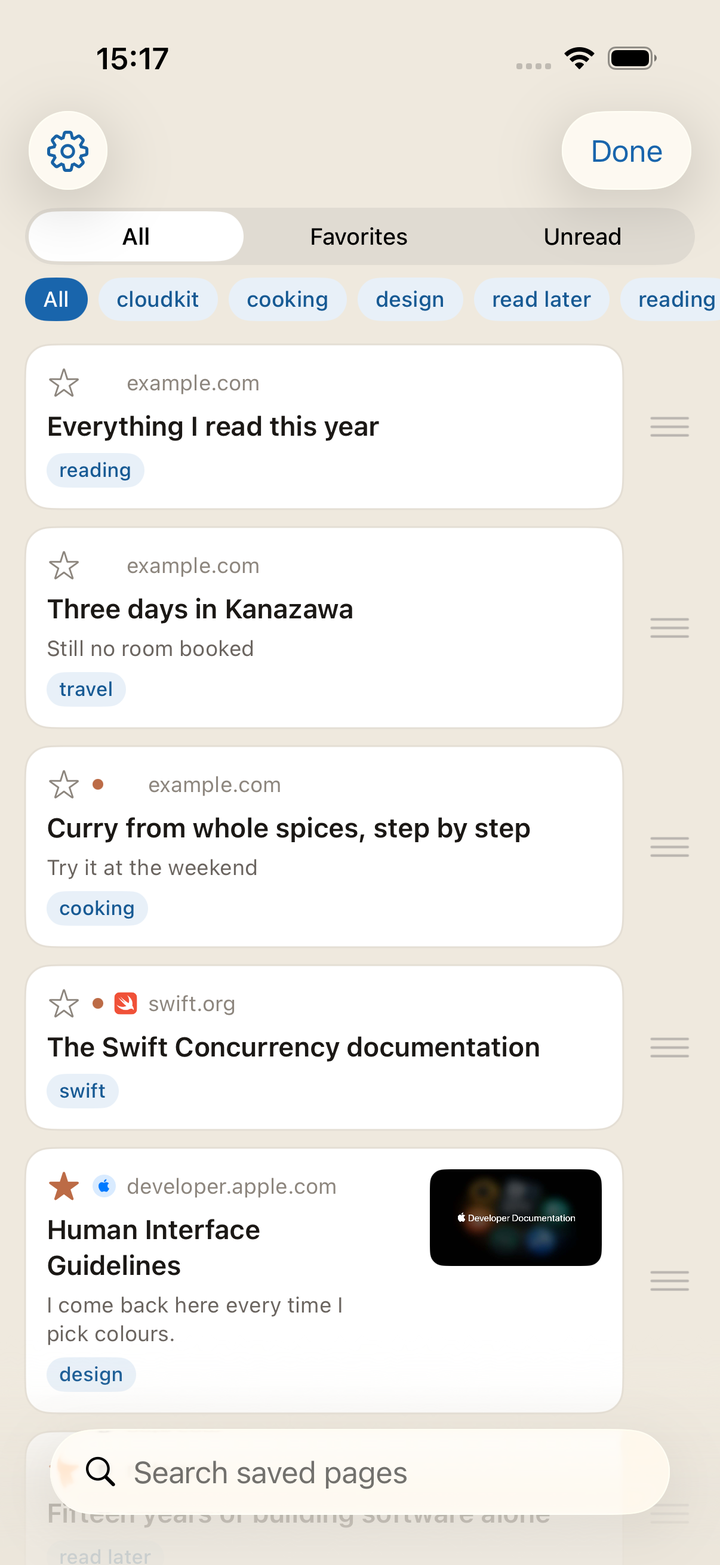
Unread is marked with a dot, favorites with a star. The star is a button. Tap it at the top left of a card to add or remove the favorite.
The page text is searched, not only the title. After saving, the start of the text is stored alongside the title, so a word you remember from the body will dig the page out even when the title will not.
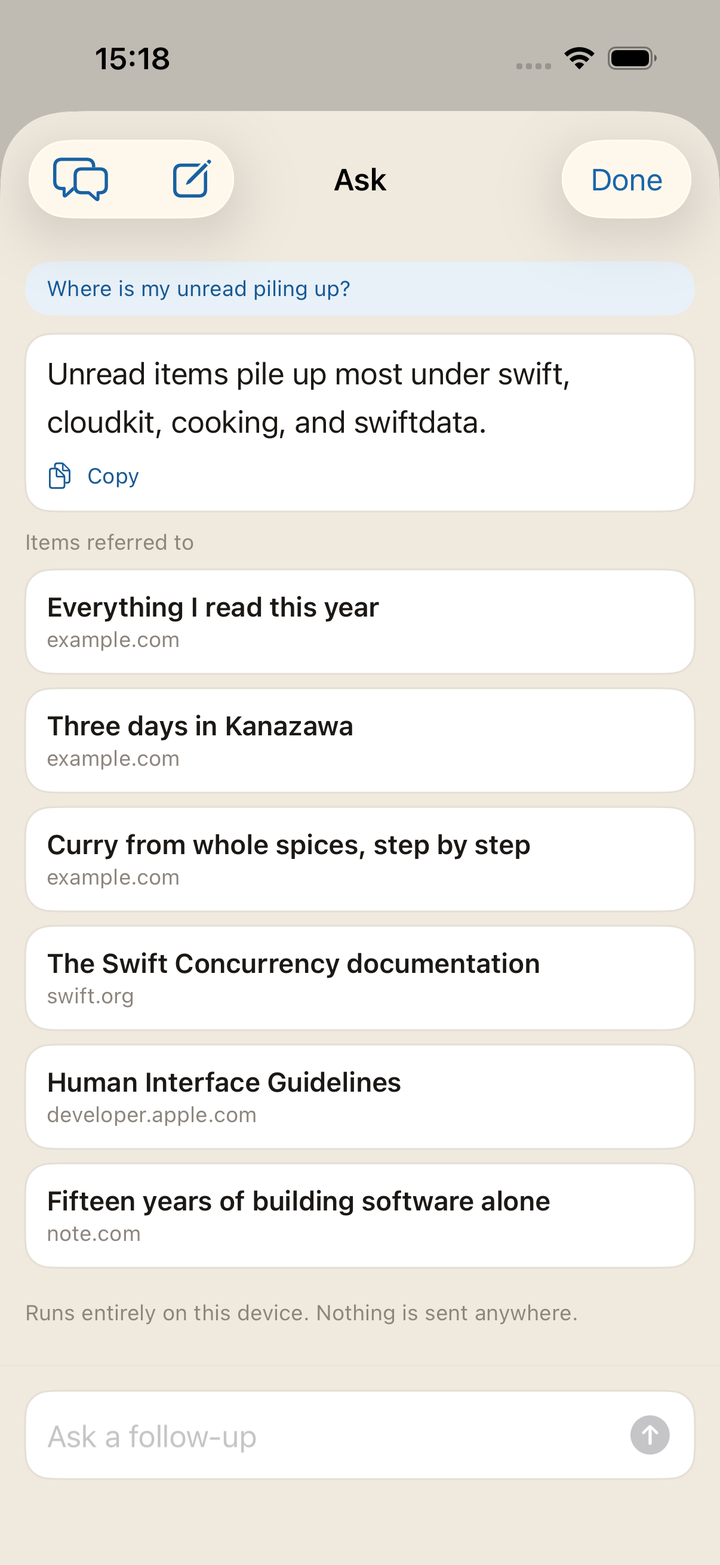
The sparkle button at the top right of the list lets you ask in plain words. Ask things like “How do I use this?”, “What have I saved lately?”, or “Where is my unread piling up?”, and the items it referred to are listed under the answer, ready to open.
It runs entirely on your device. Neither your question nor the answer is sent anywhere. What it hands the model is a handful of items closest to the question — title, tags, note, site name — plus counts and your most-used tags. Full URLs are never handed over.
You can keep asking. A follow-up like “When did I save that?” is understood in light of what came before. To change the subject, tap “New conversation” at the top left; everything up to then is cleared. The conversation is not stored anywhere, so closing the screen clears it too.
“Copy” under the answer takes it as it stands. Ask where this site is and the answer comes back as a link you can tap. Only this site ever becomes a tappable link. The URLs of pages you saved are never written into an answer.
The button appears only on devices that support Apple Intelligence (iOS 26 or later), with it enabled in iOS Settings. On other devices there is no button at all.
Press and hold an article, then choose “Summary”, and the summary is there as it opens. It is not a screen for reading. It is for deciding whether to read now.
From there you can keep asking about that article. The answers rest on that page's text alone; nothing else you saved is mixed in. A page whose text could not be fetched cannot be summarized, and says so.
The five most recent article conversations stay on your device, so you can pick up where you left off when you open the same article again. They are not sent to iCloud, and they do not carry over to a new phone.
You will find the ones that remain at the top left of the Ask screen (the speech-bubble mark). Delete them one at a time, or all at once with “Delete All” at the top right. From the summary screen, the bin at the top left deletes just that article's conversation.
Like Ask, it appears in the menu only on devices that support Apple Intelligence (iOS 26 or later).
It opens inside the app. Close it when you are done and you are back at the same spot in the list. Opening it marks it read.
Shows just the text, without ads or clutter. It is on by default. To see pages as they are, switch off Settings → Display → “Open in Reader”. Pages that do not support Reader open as usual either way.
Text size and background colour are changed inside the reader itself.
Pages that need a login, or an extension you use, are handed to Safari from here.
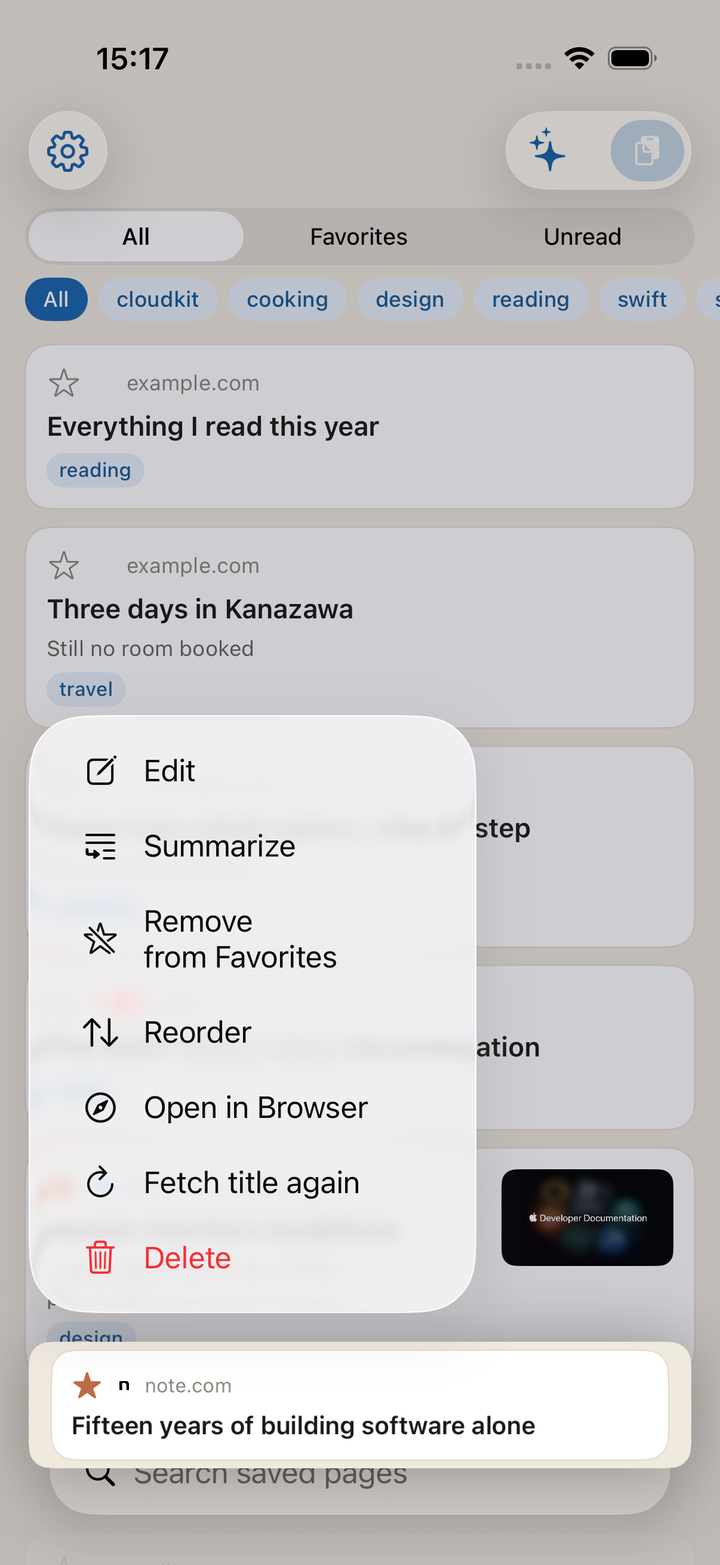
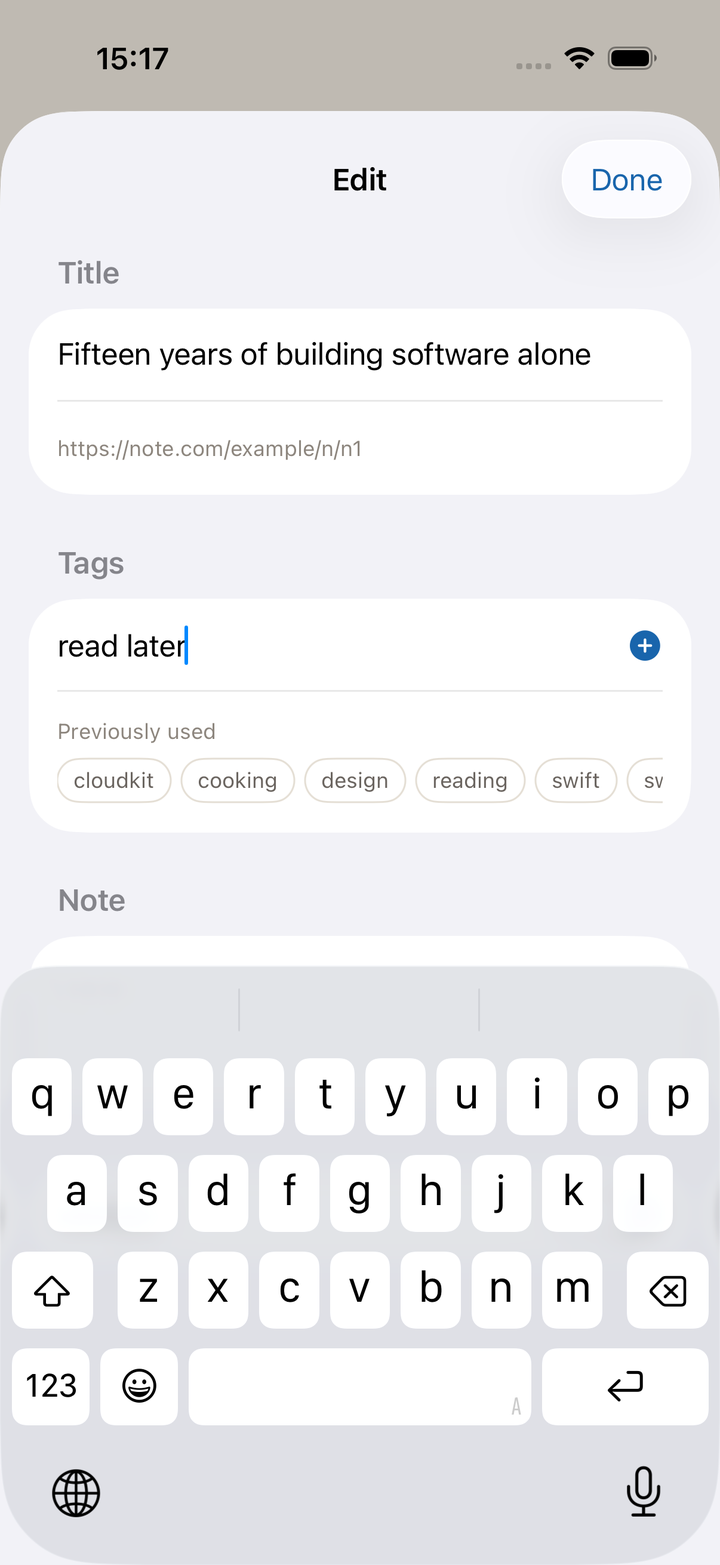
Press and hold → Edit to change the title, tags, note, and unread state.
Reordering is press and hold → Reorder → drag with a finger. You cannot reorder while narrowing or searching (moving part of what you can see would break the order of the whole). When you are done, tap Done at the top right.
For an item whose title never arrived, press and hold → Fetch Again sends the app back out.
Settings → Mute lists the tags you are using, with counts. Swipe a tag row to the left for rename and delete. Both apply across every item at once.
Deleting a tag does not delete the bookmarks. It only takes the tag off them. Once you have a lot of tags, the search on that same screen narrows them down.
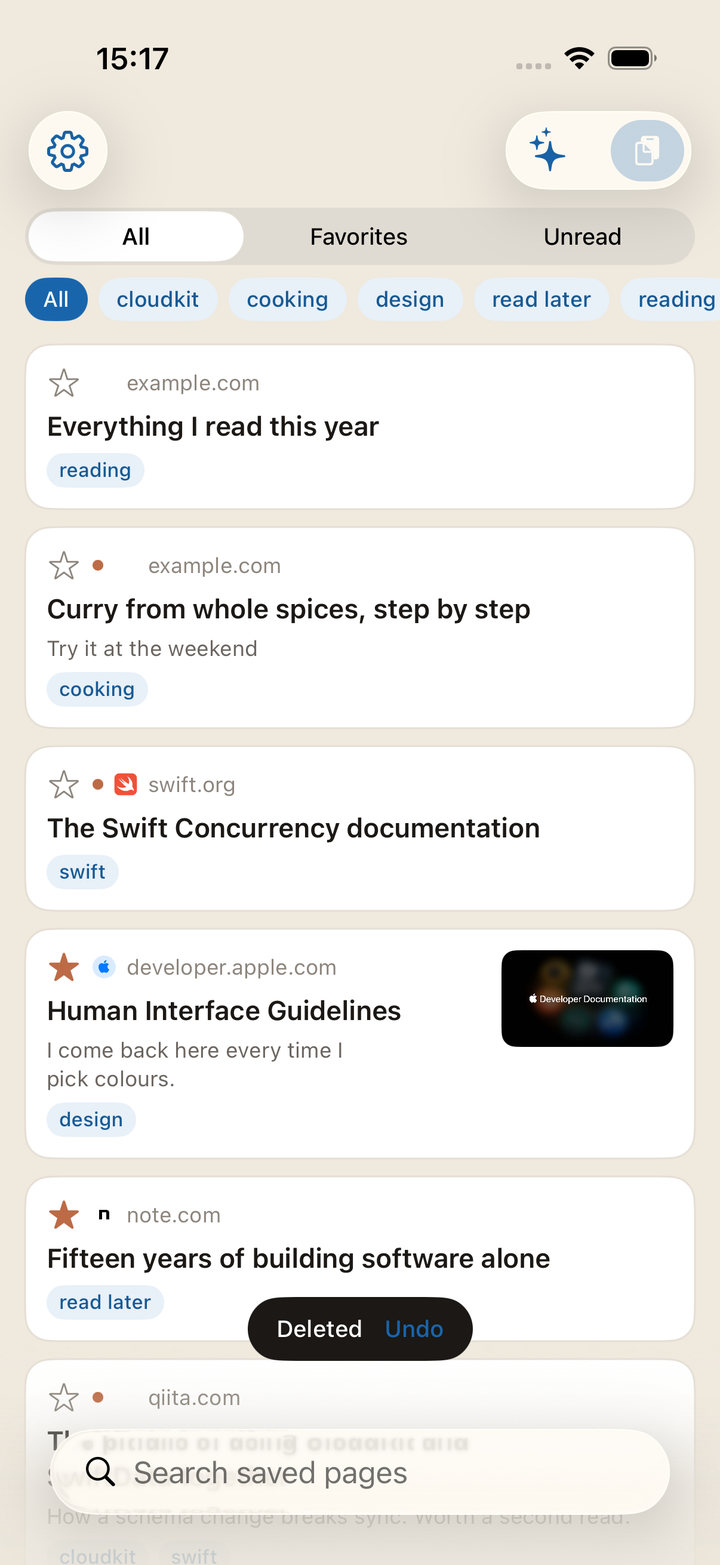
Swipe left, or press and hold → Delete. “Undo” appears for a few seconds right after. Tap it and the item comes back. Leave it alone and only then is the item gone.
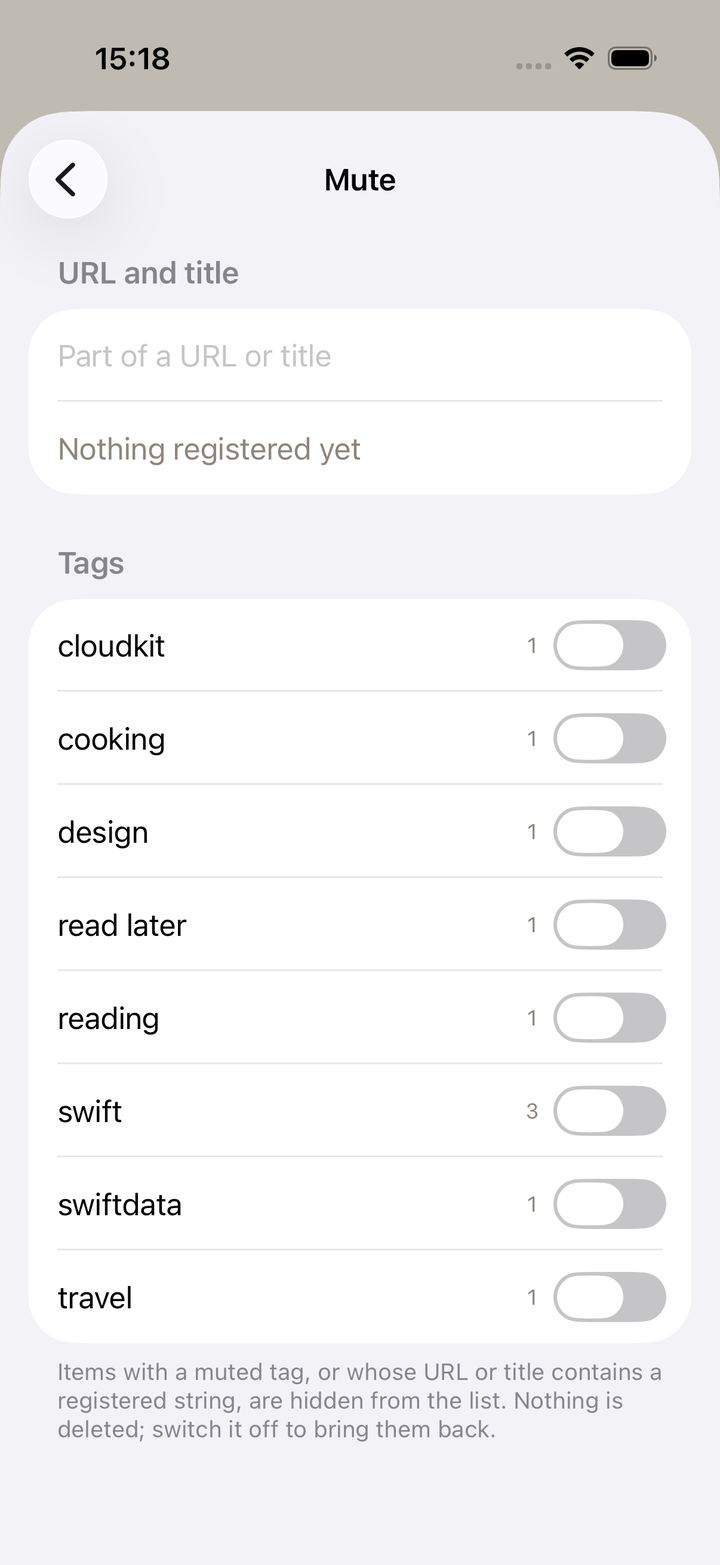
Settings → Mute. Register a string found in the URL or title and anything matching it disappears from the list. Whole tags can be hidden too. Either way, the rule stays and you can switch it on and off.
The count of hidden items is shown beneath the list. Tap it and Settings opens, where “Mute” is waiting.
Once a week, everything you have saved is written as JSON into the Kakesu folder in iCloud Drive. You can open it from the Files app, and it stays after the app is deleted.
The last eight backups are kept; older ones drop off.
Settings → Data offers export (you choose where it goes) and import at any time. Importing skips URLs that are already there and adds only what is missing. It never overwrites. The same screen shows the date of the last automatic backup.
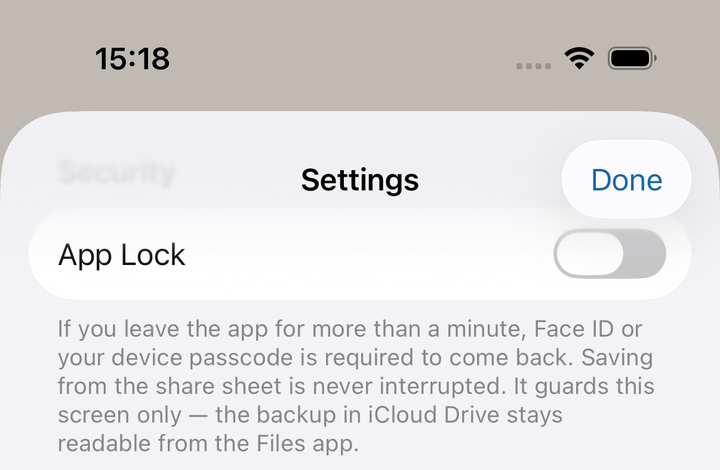
A saved URL is your browsing history, plainly. If your phone passes through other people's hands, turn on Settings → App Lock. Opening the app then asks for Face ID / Touch ID, or your device passcode.
The lock covers the app’s screens only. The JSON copy placed in iCloud Drive stays readable from the Files app. If you want the copy hidden too, manage it on the Files side.
Without a passcode set on the device the feature cannot be used (the setting becomes untappable).
App Lock never applies to saving from the share sheet. A prompt in front of the save would lose the very pages you meant to toss in.
“About” in Settings opens the terms of use and the privacy policy. The app version is in the same place — please include it when you get in touch.
Put the widget on your Home Screen and it shows how many are unread. The small size lists one recent title, the medium size up to three. Tapping it opens the app.
While App Lock is on, it shows the count and nothing else. No titles, no site names in the widget. The Home Screen is on show without a lock in front of it.
While the device is locked, or while App Lock is on, Search gives no answer. There is no reason to hand what you saved to a device that has not been unlocked. Saving still works while locked. Being able to throw something in is the point, so that one is not stopped.
Pick Kakesu under “Apps” in the Shortcuts app to find them. They work in automations too.
As long as you are signed in to the same Apple Account, it is simply there. There is no account to create. To stop syncing, turn Kakesu off under iOS Settings → Apple Account → iCloud.
For anything not written here, the contact page is the way.
 Kakesu